
Connecting Trak to Claude for teams.
Using Claude on a Team or Enterprise plan? Each person on your team needs their own Trak connector. This guide covers why, how to set it up, and what to do when people join or leave.
Just you on a personal Claude plan (Pro or Max)? You don't need this one.
View Connecting Trak to Claude here→
Why each person needs their own connector
The Trak connector connects with your API key, and everything it does happens as you. On Team and Enterprise plans, connectors are added once for the whole organisation, so if your team shares 1 connector, everyone's working in Trak as whoever's key is in it.
Say 3 people in the office share 1 connector set up with the owner's key:
- Every quote, timesheet and note they create through Claude is recorded under the owner's name.
- Your activity feed can't tell you whether Sarah or Tom raised that PO.
- When someone leaves, you can't cut off their access without breaking it for everyone else.
With their own connector each, every action is recorded under the person who did it, and you can remove one person's access without touching anyone else's.
Before you start
You'll need:
- A Claude Team or Enterprise plan, plus someone with Owner access in Claude (or an Enterprise role that can manage connectors) to add the connectors.
- Each person's API key. In Trak: Company Settings → Data Management → API Settings. Copy your API v2 Auth Key. No key yet? Generate one there.
Each person's connection URL is:
https://mcp.trak.co/u/YOUR_KEY/mcp
Your connection URL contains your API key. Treat it like a password. Send it directly to whoever's adding the connectors, never in a group chat or a shared email thread.
Setting it up
Step 1: The Claude account owner adds a connector for each person
- In Claude, go to Organization settings → Connectors.
- Click Add, hover over Custom, then select Web.
- Name the connector after the person, e.g. Trak (Sarah).
- Paste in that person's connection URL.
- Click Add.
Repeat for each person on the team, you should see each persons connector in the list.
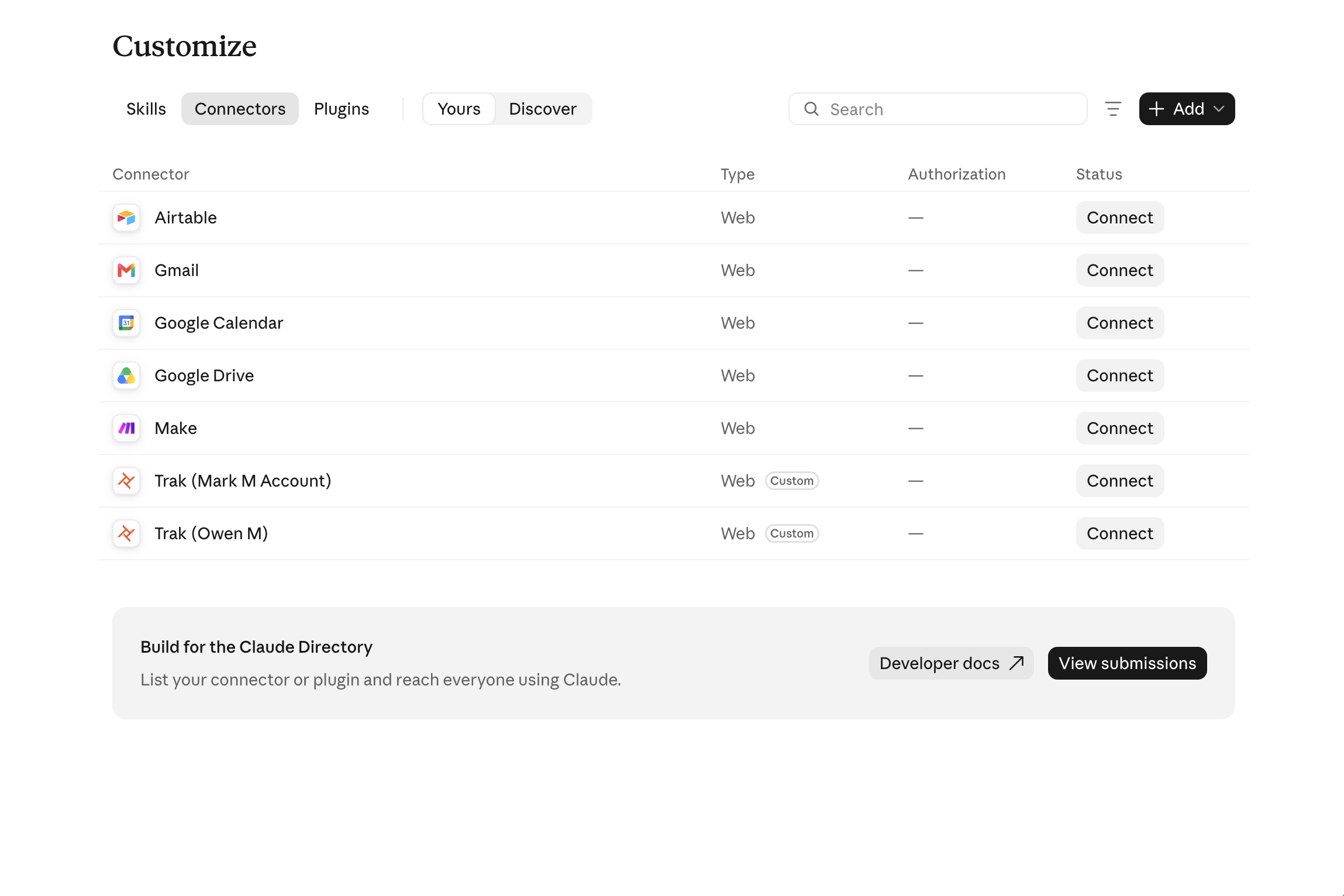
Step 2: Each person connects their own
- In Claude, go to Customize → Connectors.
- Find the Trak connector with your name on it and click Connect.
- In any chat, click + (bottom left) → Connectors and switch it on.
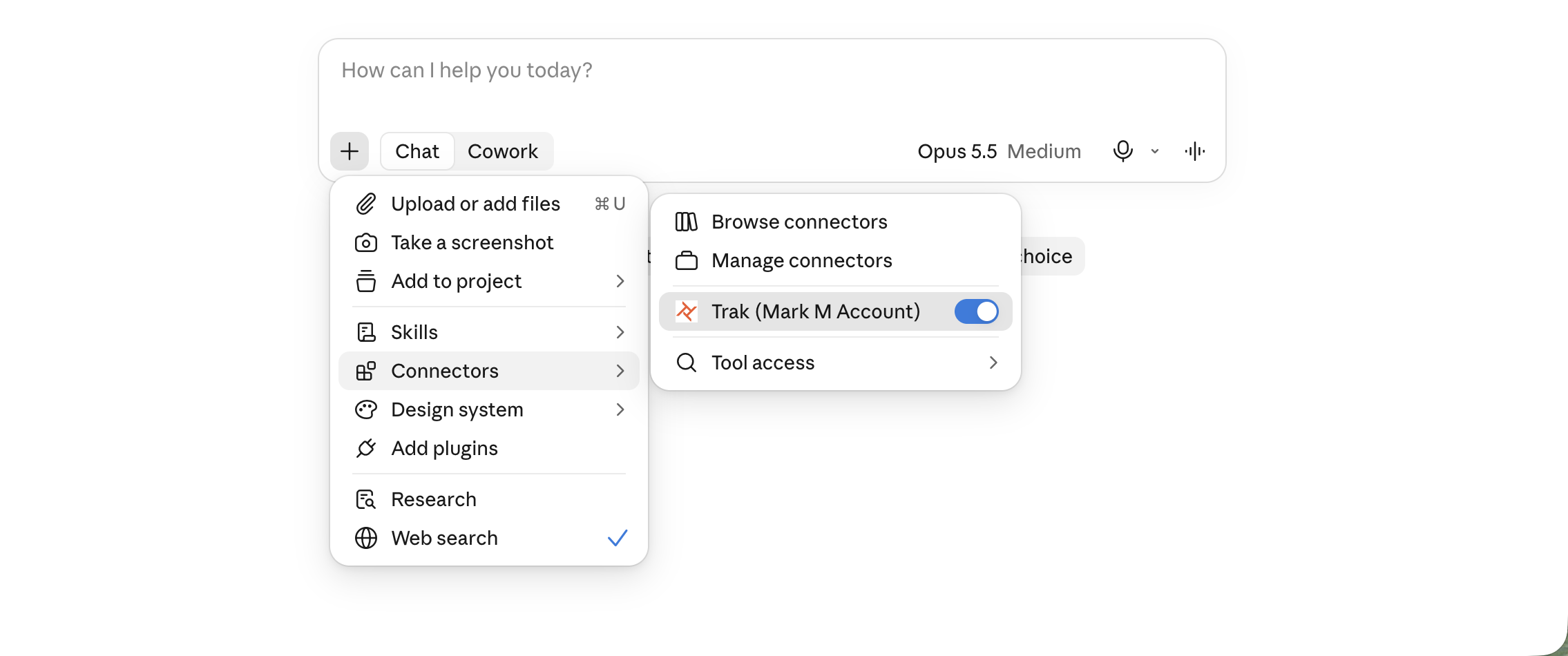
Only connect the one with your name on it. Everyone in your Claude organisation can see every Trak connector. Connecting someone else's means working in Trak as them.
Step 3: Check it's you
In a new Claude chat, ask:
*"Who am I logged in as in Trak?"*
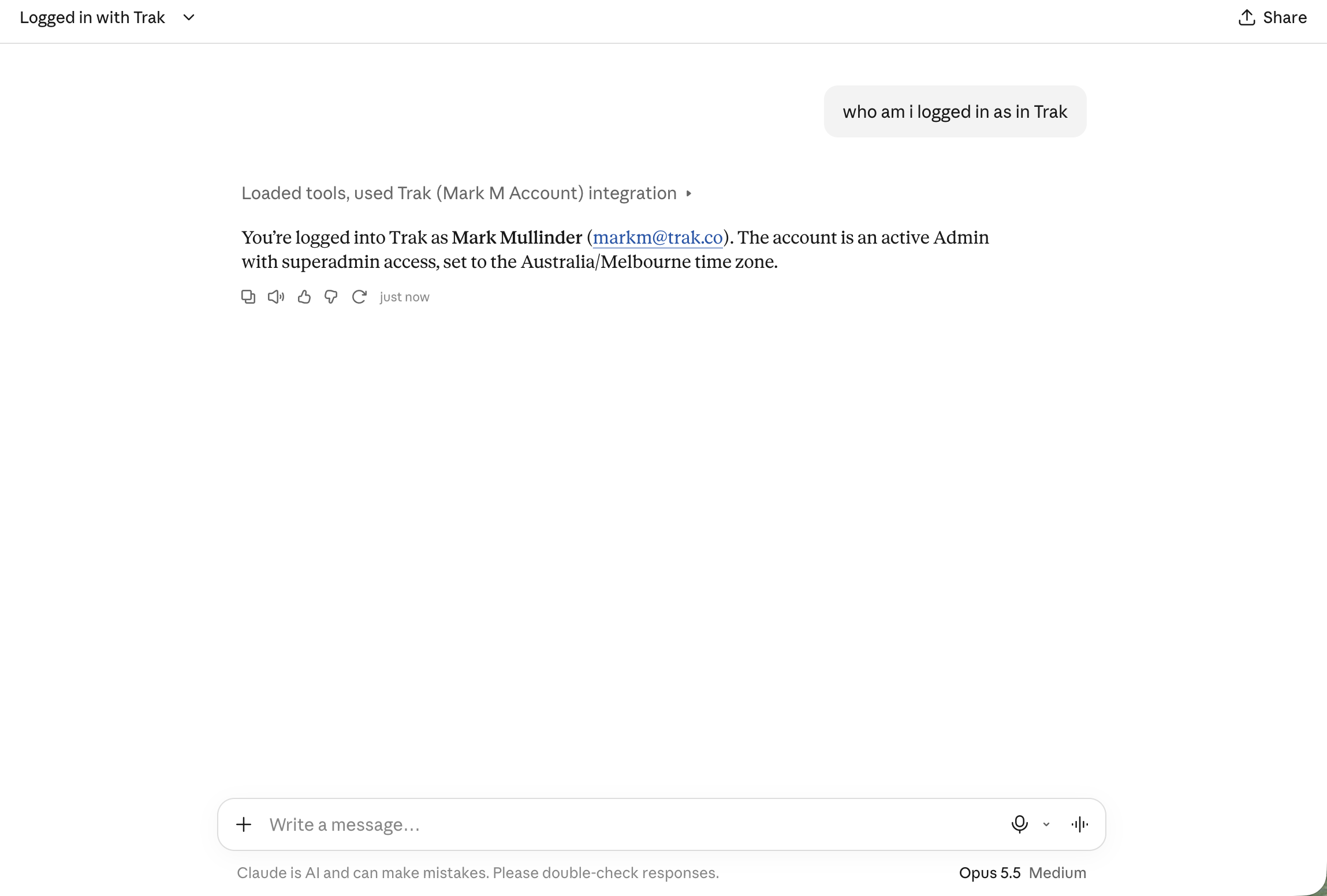
Claude checks with Trak and replies with your name. If it shows someone else's name, you've connected the wrong one. Disconnect it in Customize → Connectors and connect the one with your name.
When your team changes
Someone new starts. They copy their API key from Trak and send their URL to the Claude account owner, who adds a Trak (Name) connector. The new person then follows Step 2.
Someone leaves.
- Revoke their API key in Trak's API Settings. That cuts their access straight away.
- Remove their connector in Claude under Organization settings → Connectors.
Do it in that order. Once the key's revoked, the connector stops working, even if it takes you a few days to remove it in Claude.
Someone rotates their key. Their old URL stops working. They send the new URL to the Claude account owner, who updates their connector.
Already set up with one shared connector?
If your team's been sharing one connector, here's how to switch over:
- Add a connector for each person (Step 1) and have each of them connect (Step 2).
- Remove the shared connector in Organization settings → Connectors.
- Rotate the API key that was in the shared URL, in Trak's API Settings. Anyone who saved that URL can't use it anymore.
Troubleshooting
"Trak rejected this request (401). The API key may be invalid or missing permissions." The key in that connector's URL was revoked or rotated. Regenerate the key in Trak's API Settings and have the Claude account owner update the connector URL.
I can't see my connector in the list. The Claude account owner hasn't added it yet, or it's under a different name. Ask them to check Organization settings → Connectors.
We're hitting rate limits. Trak's API allows 4 requests per second per company, not per person. With several people using Claude at once, big requests like "profitability on every job" use up the limit faster. Ask in smaller batches.
Need more help?
- Email: contact@trak.co
- Use the support bubble in the bottom-right corner of your Trak platform